Design/Layout resources
At minimum
- Change your site title and tagline
- Set your homepage
- How to add a navigation menu
- Formatting and customizing the header
- Remove the sidebar
Customization (get fancier)
- Set pages to Full Width
- Change fonts
- Customize Colors
- tips for using color in web design
- when choosing background and design element colors, remember to choose complementary colors using a palette generator like Cool.ors (or some of their premade palettes)
- Edit the footer
- Create all sections as pages, not posts
Text
- Follow best practices on writing for the web
- Keep F-shaped reading in mind
- All links should be inline
- Use headings, not bolded/enlarged paragraph text
Images
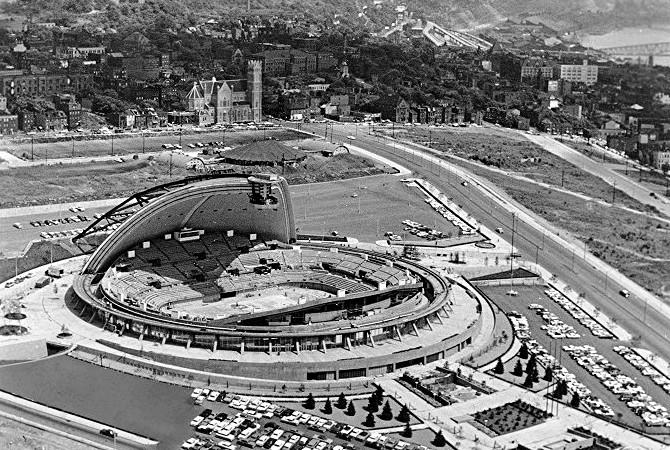
- It’s recommended that images be
- in JPEG format,
- between 1000-1500px on the longest side
- under 1MB in size.
- Full-width images should be approx 2500px in width
- Use ResizeImage or Optimizilla to compress and size your images
- All images, documents, etc. used should have a full attribution in the caption, with an embedded hyperlink, as in the example at right
(NOTE: an exception on citations can be made for header elements, where this attribution is harder to include. Give credit for such design elements in the bibliography page)
Data Visualizations
- Data visualizations should be embedded as dynamic iframes, rather than images, whenever possible.
Tip: to embed an iframe in WordPress, use the “Custom HTML” block and the full embed code, NOT the “Embed” block.
- Getting an embed code from Google Sheets:

- Be sure to choose colors that fit within your site’s design, and that are complementary/accurately represent the data. Data Color Picker is a recommended resource.
- Some data visualizations may embed strangely because of the width settings in your WordPress theme; experiment with shifting to full width to see if this improves.
